Production Guide
Step-by-step instructions for every stage of the pipeline · Click a stage to begin
.max file. Set units first: Customize → Units Setup → Millimeters to match the project scale..fbx / .obj / .dwg): File → Import. Building from scratch: Create Panel → Geometry → choose a primitive (Box, Cylinder), then refine with the Modify panel..c4d, .fbx, .obj, .3ds, .dae. If the file is .max, ask Varun to export it as .fbx first.| Parameter | Options | Recommendation |
|---|---|---|
| Resolution | 1K / 2K / 4K | Use 2K for library building, 4K for final client-facing assets |
| Aspect ratio | Match original photo | Keep the original — do not crop or resize the source before upload |
① Scene recognition — identifies whether the space is an office, restaurant, or other interior type, which informs which object categories to target.
② Object removal — removes all furniture, objects, and people while reconstructing the floor, walls, and background behind them using inpainting.
③ Composition lock — preserves the exact camera angle, lighting direction, reflections, and shadows from the original photo.
① All furniture and people are removed (no residual artefacts)
② The floor behind where furniture stood is cleanly reconstructed
③ The perspective and spatial depth match the original
④ Lighting and shadows are consistent with the original photo
If the result passes, save it to the Assets Library: assets/office_clearfield_v01.png assets/restaurant_clearfield_v01.png Keep the original photo alongside it for reference and for client comparison.
Layer 1 — Scene recognition: The model analyses the image and identifies whether it is an office or restaurant. This allows it to target the correct object categories accurately.
Layer 2 — Remove / Preserve boundaries:
| Remove | Preserve |
|---|---|
| Desks, chairs, sofas, tables, rugs | Walls, windows, floor, ceiling |
| Items on tables (laptops, dishes, cups, decorations) | Architectural structure and spatial layout |
| All people and human figures | Original lighting, reflections, camera angle |
Layer 3 — Output style constraint: Forces a front-facing, eye-level, perfectly symmetrical one-point perspective composition — camera centred in the room, equal distance to both walls, no tilt, no angle. This simulates an architectural photography standard that is consistent across the entire library.
| Element | Questions to ask | Example options |
|---|---|---|
| Ceiling | Style, height, finish, light fixtures | Exposed concrete / Timber slats / Coffered / Plain white |
| Walls | Material, colour, texture, feature walls | Plaster / Brick / Glass / Timber panel |
| Layout | Open plan vs zoned / partitions / room-within-room | Full open / Soft zoning / Meeting pod / Partition wall |
| Light | Natural light direction / time of day / mood | Morning soft / Afternoon warm / Evening dim / Overcast flat |
| Floor | Leave flexible — will be swapped at step 6 | Timber / Carpet / Concrete / Marble / Tile |
background_gen_v1.json via Workflow → Load.space_refine_v1.json. Upload the selected background image into the Base Image node.① Draw a mask over the area to be changed (inpaint mask node)
② Write a targeted prompt describing what should appear in that area
③ Generate, review, accept or retry
For changes that affect the whole composition (e.g. adding a window), regenerate the full image with an updated prompt rather than inpainting.
| Decision | What to confirm |
|---|---|
| Position | Where does the primary product sit? (centre, corner, left wall, etc.) |
| Quantity | How many units of the product should appear? |
| Pairing items | What furniture accompanies the product? (desk style, chair type, rug, side table) |
| Pairing style | Gather reference images for each pairing item — style, material, colour |
| Scale relationship | How should the product relate in size to the surrounding furniture? |
composite_v1.json. Three Load Image nodes are visible — one for each input. Upload the corresponding image to each node.① Product appearance — materials, colours, and texture match the original render
② Pairing items — match the reference images and feel appropriate in style
③ Placement — product and furniture are in the correct positions per the layout
④ Scale — everything feels proportionally correct in the space
⑤ Integration — the composite feels like a real photo, not a paste-up
• RGB channel: overall exposure and contrast
• Red/Blue channels: colour temperature (warm or cool)
• Green channel: optional tonal push for the environment mood
Keep all adjustments subtle. A well-composited image needs very little grading.
projectName_video_kling_v01.mp4.projectName_video_seeddance_v01.mp4. Flag for Topaz upscaling.
_TEMP in the filename to signal it needs replacing.projectName_video_freepik_TEMP.mp4.Workflow Overview
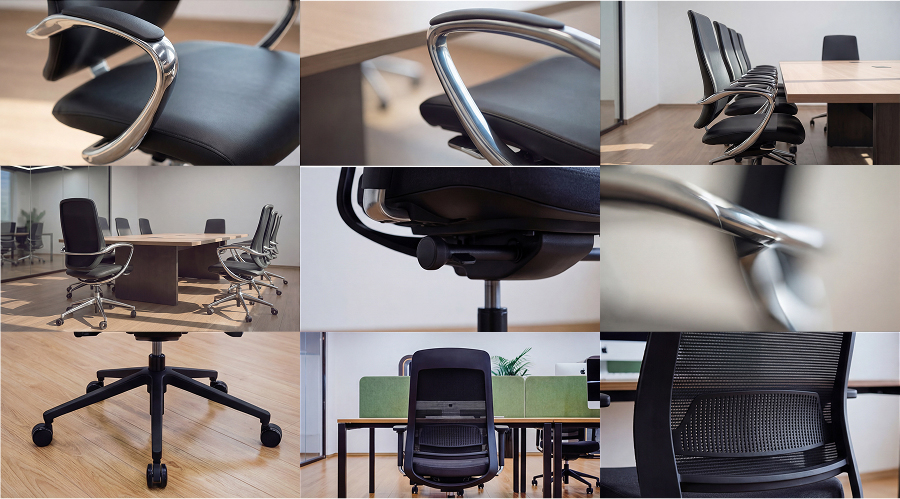
Give the system a storyboard grid and product photos, and it produces 9 ready-to-edit video clips — one per storyboard cell. Uses Gemini to interpret the storyboard and write motion prompts, then sends those prompts to Kling V3.
Stage 1 — Storyboard Analysis (Gemini)
A single 3x3 grid storyboard image is loaded and fed into a Gemini 3 Pro Preview node. The system prompt instructs Gemini to act as a motion director for high-end product ads.
What Gemini does:
- Reads the 9-cell storyboard (left-to-right, top-to-bottom → Shot 01–09)
- Writes a Kling-compatible image-to-video motion prompt for each shot
- Outputs structured XML containing a
<shotN_prompt>and<shotN_duration>for each shot
System prompt rules:
- Describe ONLY camera movement and light changes (Kling already sees the image)
- Very slow, subtle movements only — product must not deform
- Close-ups → slow orbit + subtle light shift
- Medium shots → slow arc (~15°) or slow pull out
- Wide shots → slow pull out or slow dolly forward
- Never use: fast, zoom, spin, rotate 360, handheld, shaky
- Each prompt is 1–2 sentences max
- Movements must be varied across shots
Output format (XML):
<shot1_duration>5</shot1_duration>
<shot1_prompt>Very slow orbit around product. Subtle lighting shift...</shot1_prompt>
<shot2_duration>5</shot2_duration>
<shot2_prompt>...</shot2_prompt>
...through shot 9
Stage 2 — Prompt Parsing
The Gemini output is a single block of structured XML text. A custom parser node splits it into 9 individual prompt strings. Each output is routed to its corresponding Kling generation node.
Note: The Gemini output is previewed via a "Show Anything" node. The structured text is currently entered into a DF_Text node which feeds the parser. There may be a manual copy-paste step between Gemini output and DF_Text input.
Each parsed output is also routed to a PreviewAny display node (labelled "Shot N: # of Seconds") so you can verify per-shot prompt and duration before generation runs.
Stage 3 — Video Generation (Kling V3 x 9)
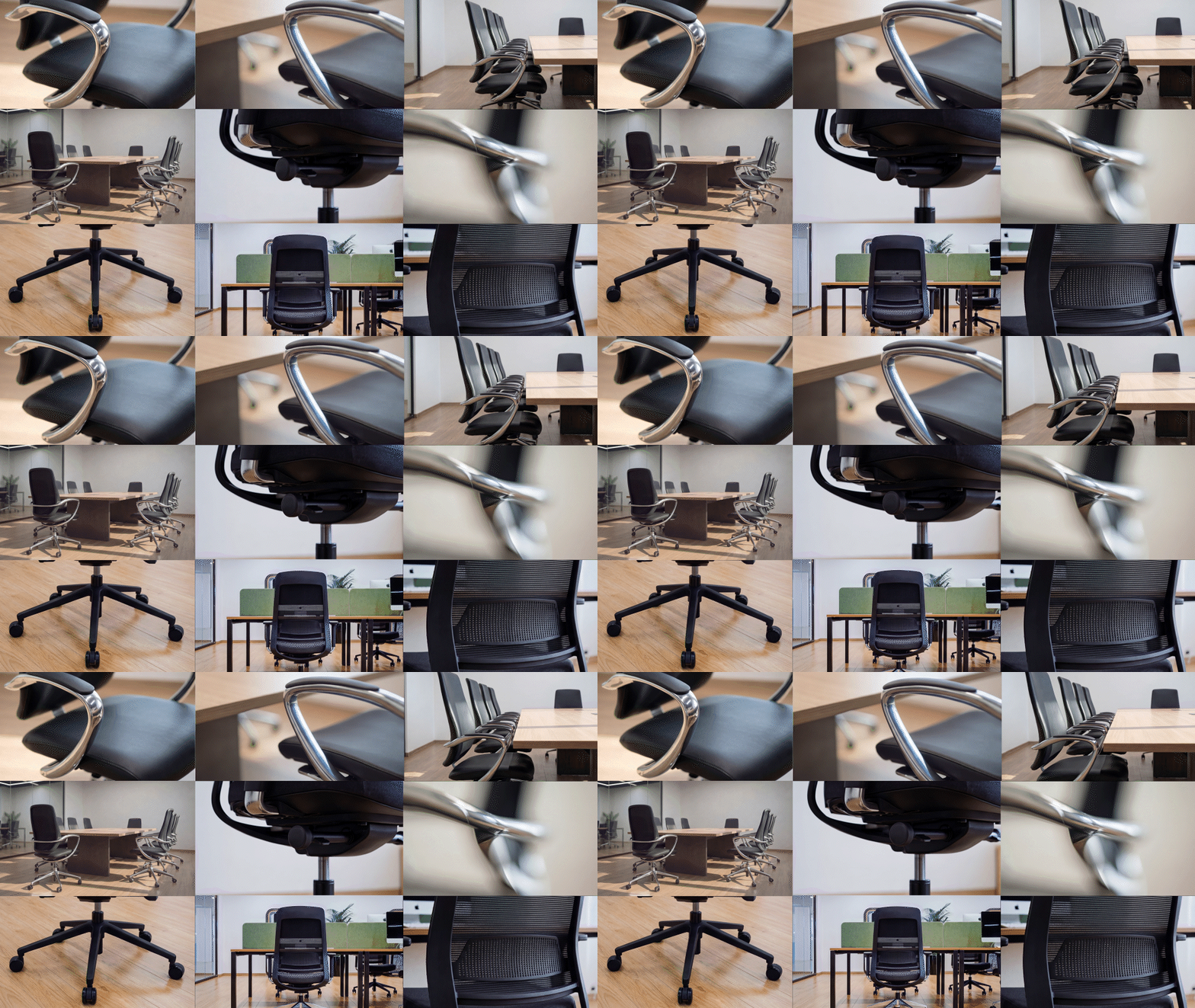
Nine parallel KlingVideoNode instances each receive a start frame image and a motion prompt.
| Setting | Value |
|---|---|
| Model | kling-v3 |
| Resolution | 1080p |
| Aspect Ratio | 16:9 |
| Duration | 3 seconds per clip |
| Seed | Randomised per node |
Shot → Start Frame Mapping:
| Shot | Source Image |
|---|---|
| Shot 1 | Image_0014 1.png |
| Shot 2 | 2 (1).png |
| Shot 3 | 3 (3).png |
| Shot 4 | 4 (2).png |
| Shot 5 | 5 (2).png |
| Shot 6 | 6 (1).png |
| Shot 7 | 7.png |
| Shot 8 | 8.png |
| Shot 9 | 9.png |
Stage 4 — Save
Each of the 9 Kling outputs is connected to a dedicated SaveVideo node, saving clips to video/ComfyUI/ with automatic naming.
Data Flow Diagram
┌─────────────────┐      ┌──────────────┐      ┌────────────────┐
│  Storyboard      │─────▶│  Gemini 3    │─────▶│  Show Anything │
│  (3×3 grid)      │      │  Pro Preview │      └────────────────┘
└─────────────────┘      └──────┬───────┘
                                │
                                ▼
                         ┌──────────────┐
                         │  DF_Text      │
                         └──────┬───────┘
                                │
                                ▼
                         ┌──────────────┐
                         │  XML Parser   │ (splits into 9 outputs)
                         └──┬──┬──┬──┬──┘
                            │  │  │  │  ... (×9)
                            ▼  ▼  ▼  ▼
┌──────────────┐     ┌─────────────────┐     ┌─────────────┐
│ Product Image │────▶│  Kling V3 Node  │────▶│  SaveVideo   │
│ (per shot)    │     │  (per shot)     │     │  (per shot)  │
└──────────────┘     └─────────────────┘     └─────────────┘
How to Use
- Prepare your storyboard — Create a 3×3 grid image where each cell represents one shot.
- Load product images — Place 9 product photographs into the corresponding LoadImage nodes.
- Run the Gemini stage — The storyboard is analysed and motion prompts are generated. Review the output.
- Transfer prompts to DF_Text — Copy the Gemini XML output into the DF_Text node (or verify it's wired directly).
- Run Kling generation — All 9 video clips generate in parallel. Output saves to
video/ComfyUI/. - Post-production — Import the 9 clips into your NLE (Premiere, DaVinci, etc.) and assemble the final sequence.
Key Customisation Points
- System prompt (Node 5) — Edit to change motion style, add/remove movement types, adjust pacing rules
- Product images — Swap out per-shot start frames for different products or angles
- Kling settings — Adjust resolution, aspect ratio, or duration on the KlingVideoNodes
- Storyboard — Change the input grid to get completely different motion direction from Gemini
Final Output
The 9 clips assembled into a finished product video:
projectName_video_topaz_4K.mp4.projectName_AE_v01.mp4.projectName_FINAL_v01.mp4.